Table Builder Interface
Create Dynamic Datatables for Flows Screens.
The Table Builder Interface allows admins to configure Datatables with a point-and-click visual interface easily. It is easy to add and arrange table columns with our point and click Table Columns Editor. Highlight key data points by adding icons and row-level CSS classes. Utilize column calculations to quickly calculate the Sum, Min, Max, and Average of all or selected row values. Add your Datatable Components to one or more Flow Screens and utilize the power of Flow to retrieve and assign records to your tables. Grant users the ability to add, edit, clone, delete, select, or filter records; see Form (Table) documentation for more details.
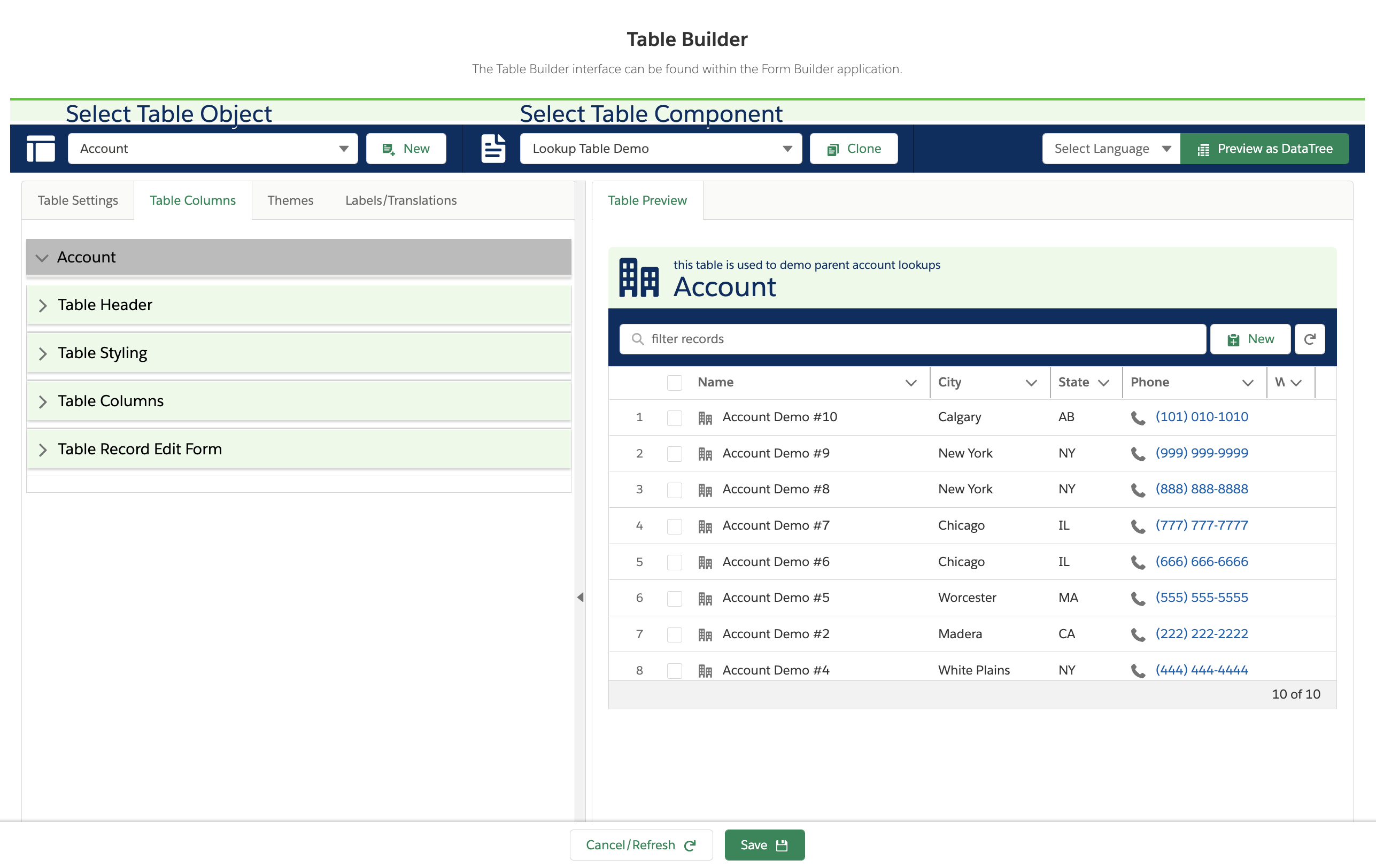
The Flow Tool Kit: (Form and Table Builder) app allows your team to create Datatables that can be easily added to any Flow Screen. Solve complex requirements without expensive developers, and give your end users access to all the data they need to meet your business requirements! Add one or more tables to Flow Screens to allow end users to interact with multiple records within a single screen.
See How it Works!
End Users Will Love
- Having access to related records within their business process flows
- Adding, Editing, and Cloning records within a single Flow screen.
Administrators Will Love:
- How easy it is to configure tables for Flow screen solutions
- Taking ownership of their development needs with a point-and-click solution
- Utilizing their Salesforce Flow skillset
Developers Will Love:
- Offloading custom table implementation tasks to System Administrators
- The ability to extend complex form and table solutions with custom Flow components
- The ability to package up components into both Managed and Unlocked packages for distribution
Key Features
Customize Columns with Overrides and Styles
Adding columns to tables is simple! All you need to do is add and order the field within the Table Columns multi-select picklist. Then, the column will be instantly visible within the table preview window. By default, the column label defaults to the field's label value. However, this can be overridden with any custom value or label/translation.
Easily emphasize column data by adding icons or CSS classes. Icons and classes can be added statically for all rows within a column, or administrators can configure custom Formula fields that dynamically set icons or classes based on record values. We recommend using theme classes available within the Lightning Design System.
Administrators can configure columns to display values with custom formatting depending on the data type. For example, currency field columns can be overridden with a custom currency code and the number of digits displayed. Date, Datetime, and Time fields can be formatted with multiple display options. For example, you can show February as Feb or 02. Text fields can be wrapped and overridden with URL links.
Display as a Hierarchy Table/Data Tree
If your team needs to display data within a hierarchical table, enable the "Display as Hierarchy Tree" toggle within the Form (Table) screen component. Hierarchical tables show child records within collapsed rows. End users can quickly expand and collapse all rows. We configured a demo of a hierarchy table within the features tab. Click Here to try it out! See the Form (Table) documentation for more information.

Simplify Flow Administration with Table Outputs:
The records that Users interact with are preprocessed and are returned in output variables, reducing the need for complex Flow loops and decision elements. For example, if a User updates a record, only the updated records are returned within the Update Collection output variable. Admins can then pass this output collection into an update action to update the records. The same applies to deletes, selections, or when a User adds new records. It is important to note that the Form (Table) component does not handle Querying records or DML Operations. Instead, administrators control exactly what record(s) to display and how records are inserted, updated, or deleted! Please take a look at the Form (Table) documentation for more information.

Configure How a User Interacts with Table Record(s)
Administrators can configure the Form (Table) component to allow end Users to Add, Update, Clone, Delete, and Select record(s). By default, a User can Update, Add or Delete multiple records within the table before sending the changes to the Flow for processing. Alternatively, admins can force any change to force the Flow to move forward and process each change.
Adding or updating records within tables is also very customizable. Admins can allow end users to edit or remove records one at a time or in bulk. Administrators utilize customizable Form Components to determine which fields an end User sees when adding or updating records. For example, administrators can use tables to allow end users to select one or more records for processing. Furthermore, Administrators can allow end Users to search/filter records. When filtering is enabled, a search input field is visible. Search inputs will filter search all table columns and return records that contain any part of the search input. Please take a look at the Form (Table) documentation for more information.
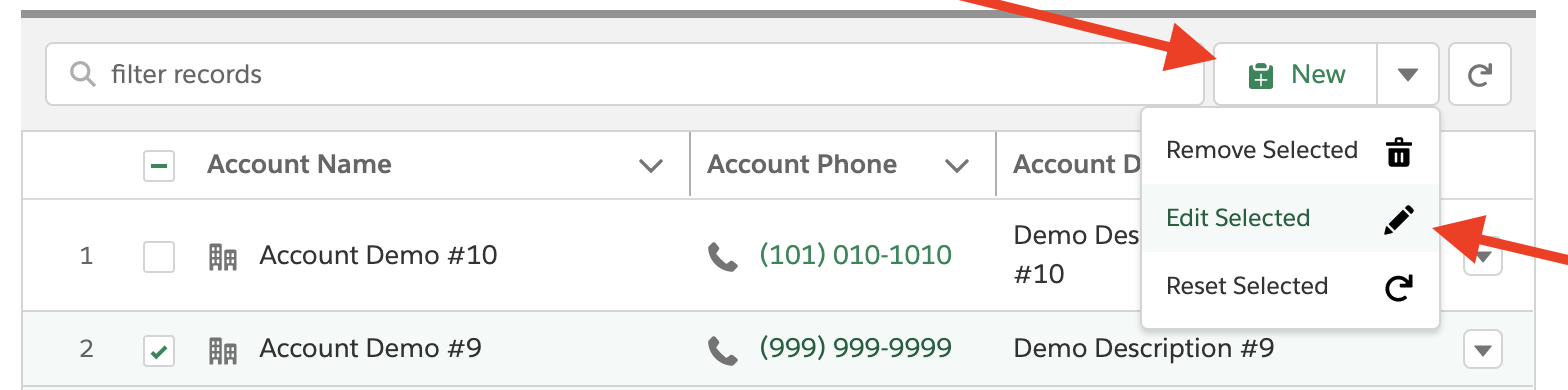
Table Column Calculation
Calculating table column values is easy within the Table Builder interface. Calculations can be configured for any number column. For example, a column can calculate the Sum, Min, Max, or Average of the column values when enabled. Only selected values are used to calculate the displayed result within the results row if "Selection" is enabled.
Custom Metadata
The Table Components that your team develops are stored in Custom Metadata. This means that your components can be easily deployed and/or migrated between orgs with Changesets or the Metadata API. Furthermore, Developers, Consultants, and Open Source projects can bundle up components with 2nd Generation Packages to share between orgs. Please take a look at our Admin Guide for more details.